Recording tests
The recorder converts supported interactions in a Dynamics 365 browser tab into editable test steps.
Prepare the recorder
- Connect the environment you want to record against.
- Open Designer.
- Select New > Record case.
Depending on the deployment, recording uses a browser extension, a local automated browser, or a configured remote browser.
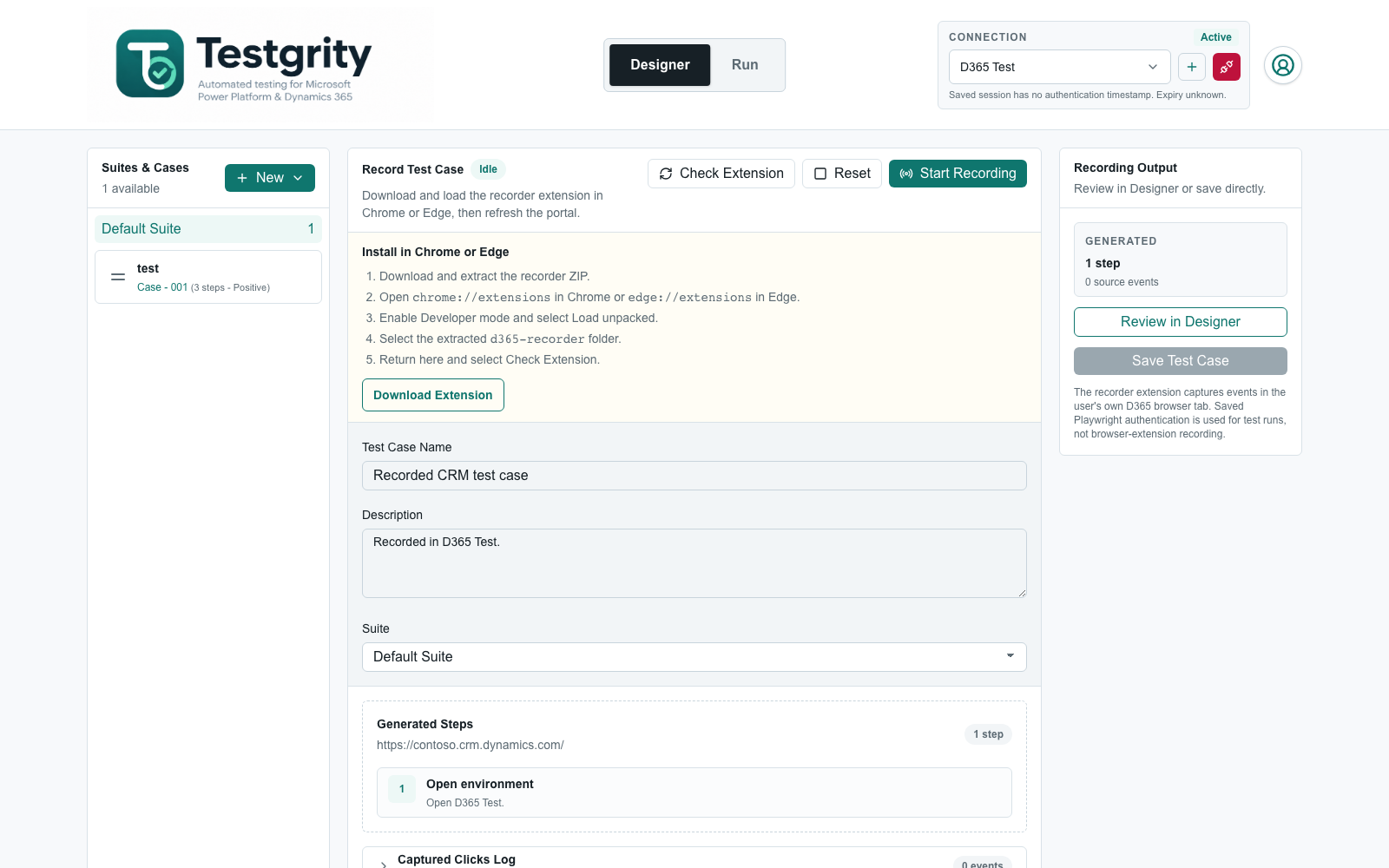
Install the browser extension when prompted
For the normal installation:
- Select Install to open the Testgrity Recorder Chrome Web Store listing.
- In Chrome, select Add to Chrome. In Microsoft Edge, select Get.
- Review and approve the browser permission prompt.
- Return to Testgrity and select Reload & check. Chrome and Edge only add the extension to an already-open Testgrity tab after the page reloads.
Marketplace installation keeps the extension updated automatically. If your
administrator provides a manual ZIP instead, select Download, extract it,
open chrome://extensions or edge://extensions, enable Developer mode,
select Load unpacked, and choose the extracted folder containing
manifest.json. Manual installation is intended for development, testing, or
managed deployments where a marketplace listing is unavailable.
Extension recording uses the D365 session in your own browser. Browser execution uses that browser profile too. Background test runs instead use the saved environment authentication.
Record a case
- Enter a test case name and description.
- Select the destination suite.
- Select Start Recording.
- In the D365 browser, perform the workflow you want to test.
- Select Stop in the recorder sidebar, or return to Testgrity and stop the recording.
During browser-extension recording, a Testgrity sidebar appears in the D365 tab. It shows the generated step count and a live list of the steps Testgrity infers:
- Select Pause when you need to interact with D365 without recording; select Resume to continue.
- Use the arrow in the sidebar header to collapse or expand it.
- Select Stop to save the last pending field change, stop the recording, and close the recording tab.
Field typing is consolidated so that a completed value normally produces one generated field step rather than a step for every keystroke. Clicking a record link in a D365 grid is generated as Open record; links in a grid command bar remain command actions. Clicks that only focus a known field are ignored.
In Testgrity, the Generated Steps list shows the same inferred actions. Expand Captured Clicks Log to inspect the raw events behind them. Remove an unwanted generated step with ×, or select Reset to clear the recording session.
Finish the recording
Choose one of these options:
- Review in Designer — open the generated steps in the standard editor to adjust targets, values, comments, ordering, or expected outcomes before saving.
- Save Test Case — save the generated case directly to the selected suite.
Reviewing in the Designer is recommended for important flows. Add explicit verification steps because a recording mainly captures interactions; a robust test should also state what must be true at the end.
Recording limitations
- Only supported D365 events are converted into steps.
- Some complex controls may need a manually added action or typed target.
- Interactive recording may be unavailable in a headless cloud deployment unless the browser extension or remote recorder is configured.
- Recording with the extension requires a signed-in D365 session in the same browser profile.
- The generated list can briefly show a pending interaction while Testgrity processes it. Pause or Stop waits for queued interactions to be submitted.
See Troubleshooting if Start Recording remains disabled or no events appear.